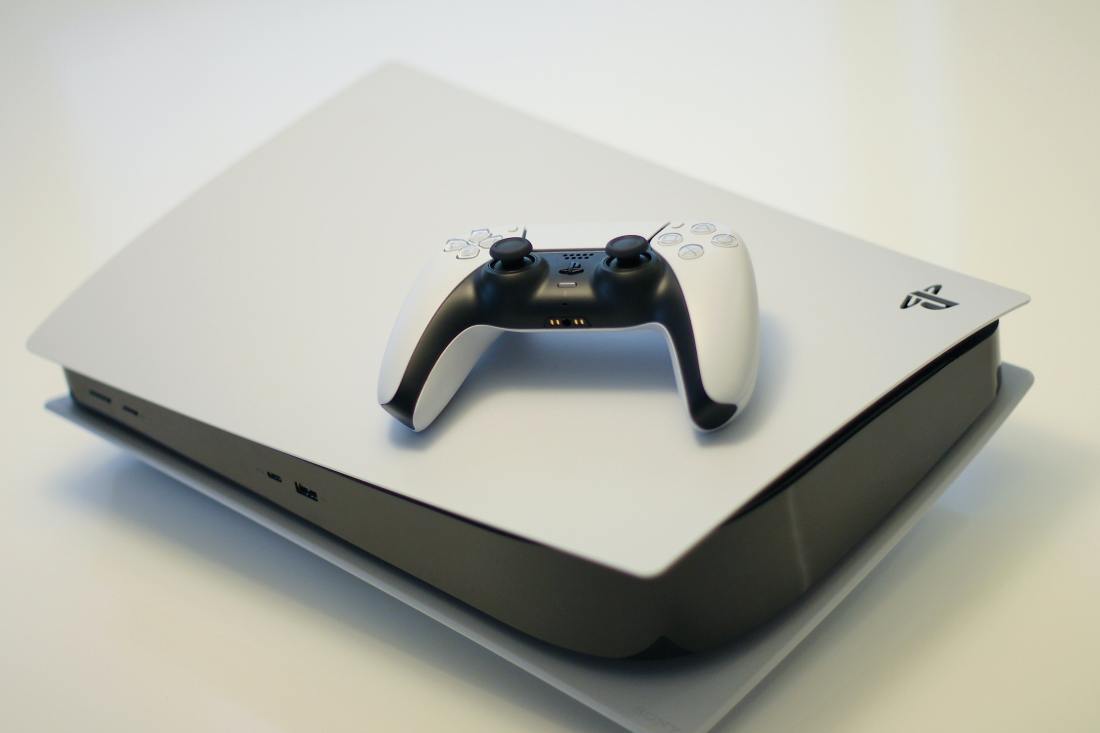
I stayed up many nights, refreshing and researching. One night I came upon a tip and went searching online for a Playstation 5 (PS5) and I was able to secure one.
A week passed and I picked up the system. I waited a week until the game I wanted was released and then I got into the mood. It was a ceremony. I ordered everyone to be quiet, poured a glass of whisky, and began to open the box. I quickly set it up, however, downloading the game onto the system would postpone my fun another hour or so.
After all that, I fired up the game and was amazed by the graphics and quick loading times. Perfect…until midway into my first game. The game crashed. ERROR CE-108255-1. I quickly looked it up to find that I wasn’t the only owner of a PS5 that produced this error. I researched for hours on how to fix this issue. Sony offers the following steps to possibly fix the problem.

- STEP 1 – Delete and re-install the game that’s giving you problem. If the problem persist go to step 2.
- STEP 2 – Start the system in SAFE MODE and rebuild the database. (More than likely this doesn’t fix the issue, so onto step 3)
- STEP 3 – Reboot to factory settings
For some those steps may have worked, but for most it didn’t. So after researching for hours and speaking to Sony Customer Support a few times, I found some tips to potentially fix the problem.
Possible Fixes
(Disclaimer: These are POSSIBLE fixes and may or may not work. But giving them a try doesn’t hurt)
- POSSIBLE FIX #1: Turn off the internet connection on the PS5. (Who really wants to turn off their internet connection to their game? This fix allowed me to play a full game on Madden 21, however, the fix did not last and the game crashed the next time I played without the internet. If this doesn’t work or does not appeal to your gaming preference, disregard and follow possible fixes #2 – #4)
SETTINGS>>NETWORK>>SETTINGS>>CONNECT TO THE INTERNET
- FIX #2: Change 4K transfer rate from AUTOMATIC to “-1”
SETTINGS>>SCREEN AND VIDEO>>4K VIDEO TRANSFER RATE
- FIX #3: Set resolution to 2160p instead of AUTOMATIC
SETTINGS>>SCREEN AND VIDEO>>RESOLUTION
- FIX #4: Change to PERFORMANCE MODE instead of GAME DEFAULT
SETTINGS>>SAVE DATA AND GAME/APP SETTING>>GAME PRESETS>>PERFORMANCE MODE or RESOLUTION MODE
Since making changes to my system with FIXES #2-4, I’ve been able to play a few games of Madden, Watch Dogs didn’t crash, and I played a few hours of FIFA 21.
The Sony Customer Support Agent informed me that an update to fix this problem should be arriving. When it will arrive is the ultimate question. The most recent update was released 11/25, but it did not fix the CE-108255-1 error message issue.
Before you decide to return your system or give up until a permanent fix arrives, try these fixes. Another tip is to alter/play with the in-game graphic/video settings. They have the potential to possibly fix the problem for now. If the fixes do not work, contact Sony Customer Support. Some PS5 gamers have been able to send their PS5’s in to Sony. Hopefully, these fixes correct your system so you’re able to take in what the PS5 has to offer.
 Josh Blake Writes